- Developer
- Petr Nálevka (Urbandroid)
- Installs
- 10M+
- Downloads
- 0
- Views
- 3
- Updated
- Nov 6, 2026
Screenshots
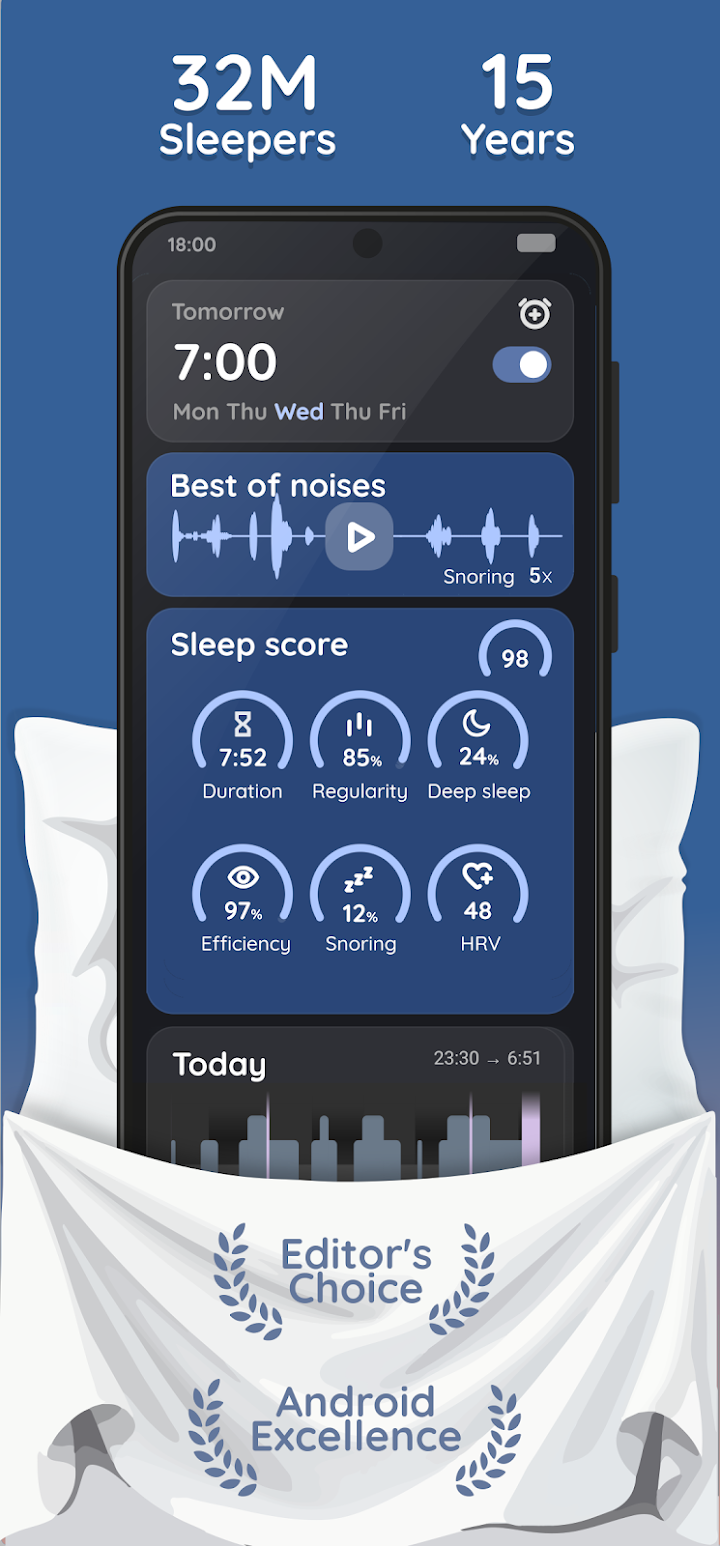
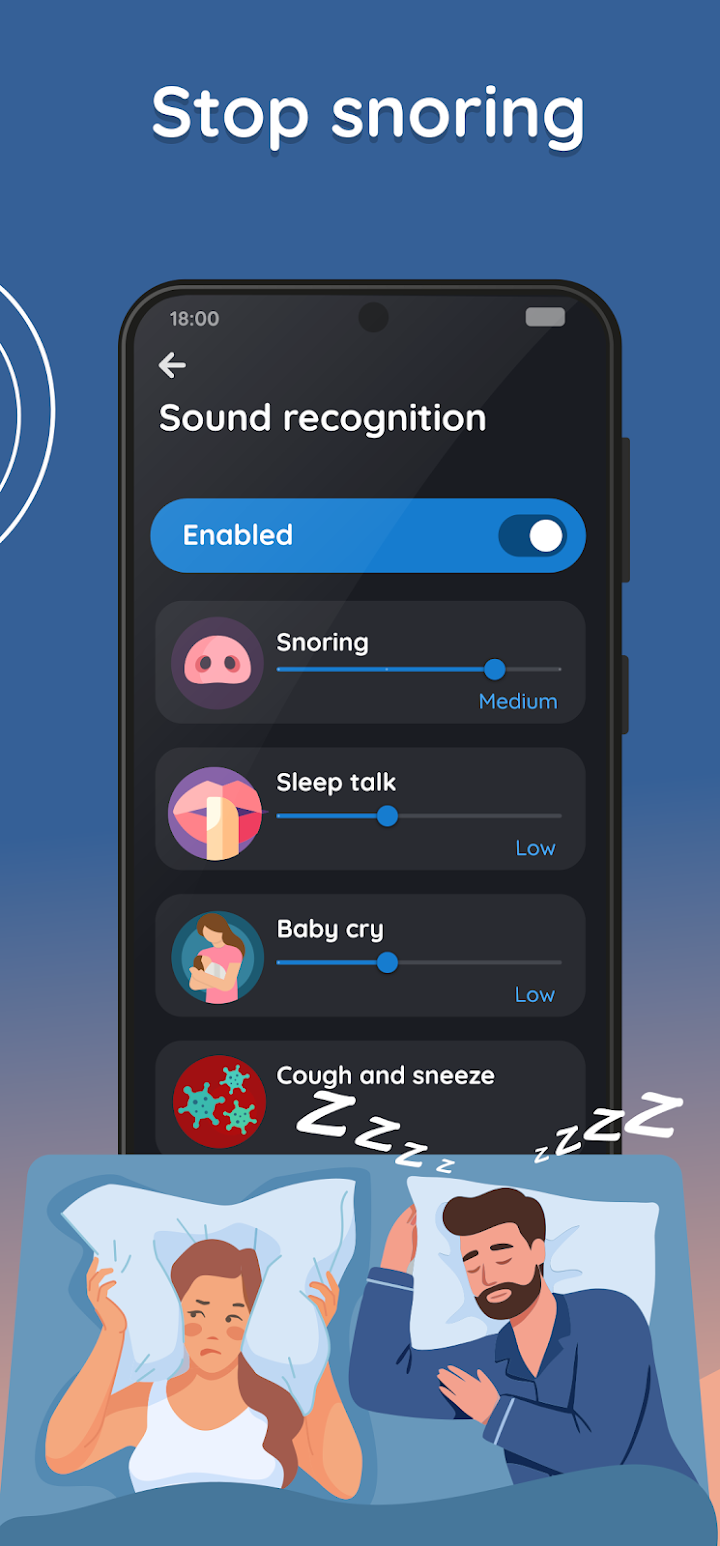
About Sleep as Android: Smart alarm
Sleep as Android: The Sleep Tracker That Asks More of You — and Gives More Back
Updated November 2026 · Written by the NovaRunway editorial team
Quick Verdict
Sleep as Android is the most capable sleep-tracking app on Android, and it has been for over a decade. It is also the least forgiving. The feature list is genuinely enormous — sonar-based contactless tracking, smart wake windows, snoring and sleep-talk detection, CAPTCHA alarms that force you awake, Spotify integration, Philips Hue and IKEA smart-light sunrise, and support for more wearables than any competitor. The catch is that none of it works well on default settings. This is a tool that rewards an hour of configuration and punishes you with noisy, meaningless data if you skip it. Two other things matter before you install. First, it requests Accessibility Service and Device Admin permissions — unusual, powerful, and explained honestly in the listing, but you should understand what you are granting. Second, sonar tracking has physical limits: it needs your phone plugged in, positioned correctly, and it struggles with thick mattresses and partners who move. It is a superb app, but it is not a Fitbit replacement you can set and forget.
What Sleep as Android Actually Is
Sleep as Android is a sleep-cycle alarm clock and tracking app from Urbandroid, the studio of developer Petr Nálevka. It has been on the Play Store since around 2010, which makes it one of the longest continuously maintained apps in its category .
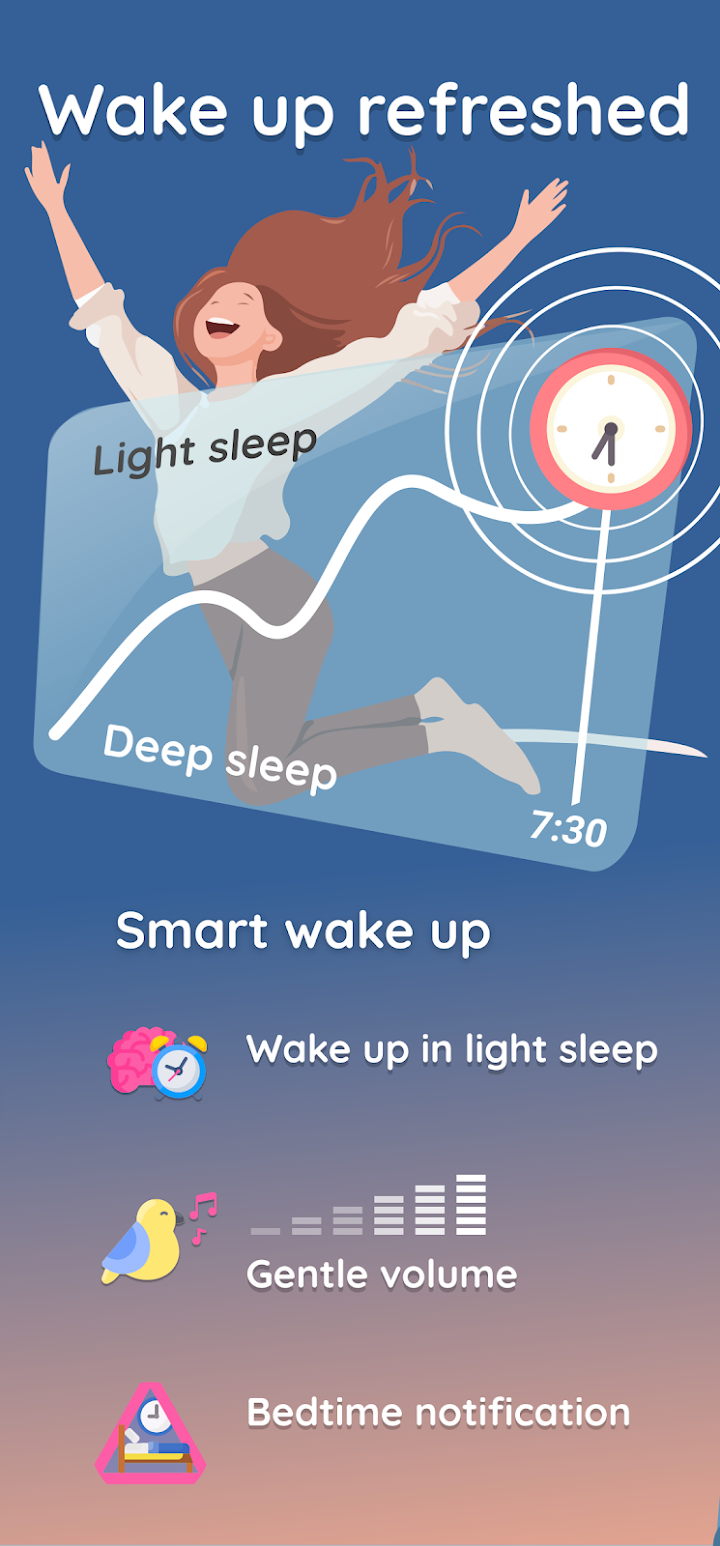
The core idea is simple. Instead of waking you at a fixed time, the app watches your movement through the night and looks for the lightest phase of sleep within a window before your alarm. Wake you then and you feel less groggy than if it had dragged you out of deep sleep . That is "smart wake," and it is the feature every sleep app now copies.
What separates Sleep as Android is the breadth of methods it supports for detecting that movement. You can use:
- Accelerometer — phone on the mattress, detecting your movement directly.
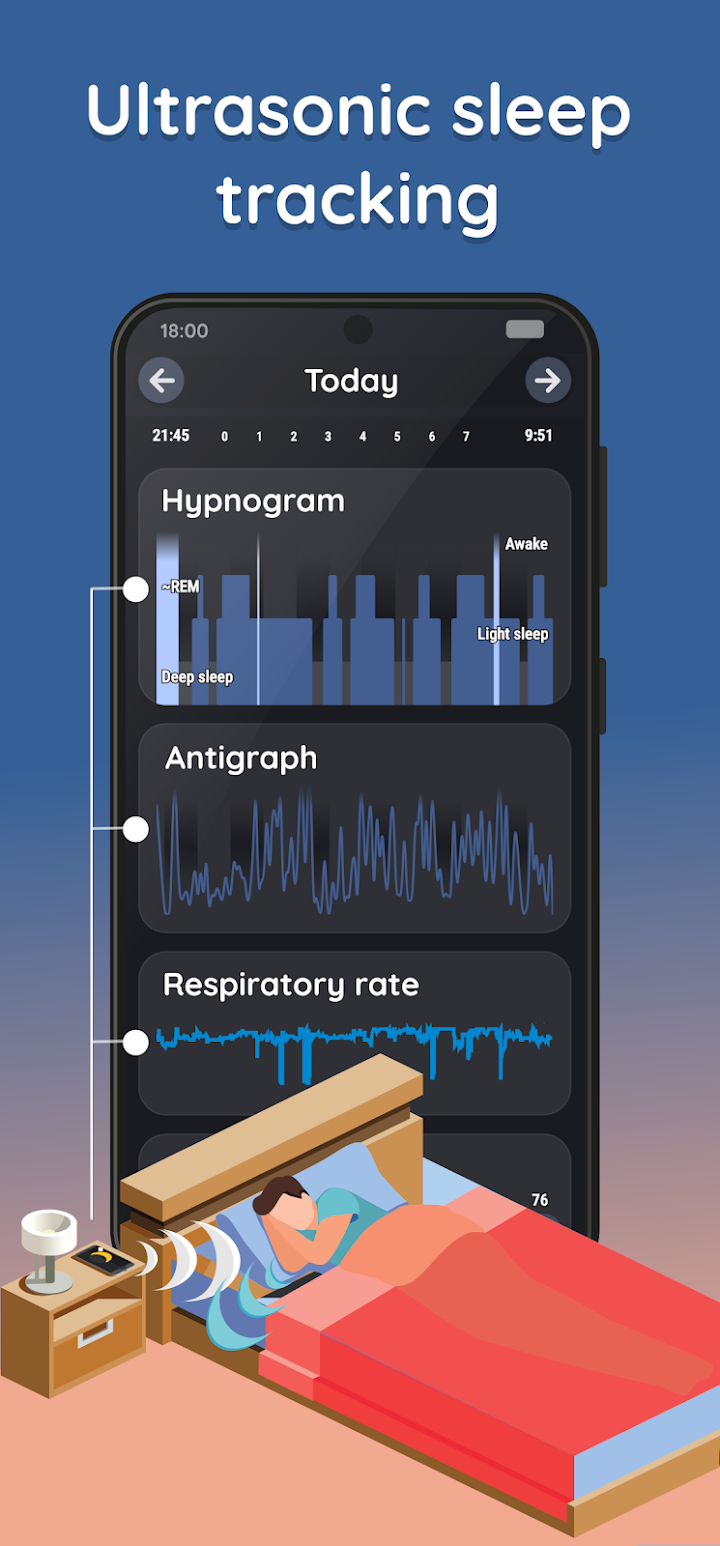
- Sonar — phone on the nightstand emitting an inaudible pulse and listening for your breathing and motion, so the phone stays out of bed.
- A Wear OS watch — sensors on your wrist, with the phone untouched.
- Supported wearables and bands — from Pixel Watch and Galaxy Watch to Garmin via Connect IQ, Polar chest straps, Mi Band and Amazfit via a third-party app, and Fitbit devices.
- Oximeters — for blood-oxygen data, if you own compatible hardware.
That flexibility is the app's defining trait. It is not a closed ecosystem; it is a hub that works with whatever hardware you already own .
The Free Tier, the 7-Day Trial and the Premium Purchase
The store listing says "enjoy 7 days premium, then keep freemium or upgrade," and that is accurate — but it does not explain what "freemium" actually leaves you with.
After the trial, the free version remains genuinely usable. You keep the alarm clock, the basic sleep tracking, and the ability to record and review your nights. It is not a crippled demo that stops working.
What the premium upgrade unlocks is the long tail: the full set of tracking sensors, advanced statistics and trends, additional alarm types, and the extended integration options . Pricing is regional, but the structure is worth stating clearly because it is unusually fair:
- It is a one-time purchase, not a subscription. You buy it once and you own it. That is rare in this category, where most competitors charge monthly for the same data.
- SleepCloud — the optional cloud backup and sync service — is a separate paid service if you want it. Local backups and Google Drive/Dropbox export are part of the app; SleepCloud is the convenience layer.
The honest framing: this is one of the last premium utilities that respects a single payment. If you use it for a year, it costs less than two months of most subscription sleep apps.
Setup: Why Default Settings Produce Bad Data
This is the section most reviews skip, and it is the difference between loving and uninstalling the app.
Sleep as Android gives you enormous control over how it detects and reports sleep. That control is the point, but it means the out-of-box experience is generic. The defaults assume a fairly standard setup: a phone on the mattress, a regular bedtime, and a normal sleep duration.
If any of those assumptions are wrong, the data degrades. A few practical adjustments that matter most:
- Choose your sensor method deliberately. If your phone shares a mattress with a partner who moves, accelerometer tracking will read their movement as yours. Sonar or a watch is the better choice.
- Set a realistic smart-wake window. A 30-minute window is a good default. A 90-minute window sounds better but means the app may wake you far earlier than you intended.
- Calibrate sonar before trusting it. The app has a setup routine for this. Skip it and you will get weeks of nonsense readings.
- Set your bedtime and target duration honestly. The sleep-deficit and regularity scores are relative to what you tell it. Lie to it and the advice becomes useless.
- Run one or two nights with no smart wake. Get a baseline before you start changing things. You cannot tell whether the app is helping if you never see your unassisted sleep pattern.
The app also has an AI assistant that summarises trends and explains what your data means, which is genuinely useful once you have enough nights logged — but it needs the baseline data before it can say anything meaningful .
Sonar Tracking: Clever, but Know Its Limits
Sonar is the feature that gets people interested, and it deserves an honest description rather than a bullet point.
Instead of putting your phone in bed, you place it on the nightstand, plugged in. The app emits a high-frequency pulse and listens for the reflection. Small changes in the returned signal correspond to your chest moving as you breathe, and larger ones correspond to you shifting position. That gives you contactless tracking and, in principle, breathing-rate data you cannot get from an accelerometer .
It works. It also has constraints that the store listing does not spell out:
- The phone must be plugged in. Continuous sonar is power-hungry, and the app expects mains power.
- Placement matters enormously. The phone needs an unobstructed line to your chest, at a reasonable distance. A nightstand behind a lamp or a bed with a high footboard can break it.
- Thick bedding and mattress types affect the signal. The calibration routine exists because the physics varies by bed.
- Partners and pets interfere. Sonar is not directional in the way people assume, and a second person in the bed produces a mixed signal.
- It is a fitness-and-wellbeing feature, not a medical one. The listing is explicit about this, and it is the correct framing.
If sonar does not work in your room, the fallback is a wearable or accelerometer — and the app supports both well. That flexibility is why it survives the physics problem.
The Permissions: What Accessibility and Device Admin Actually Do
This is the part a careful reader should focus on, because it is the most unusual thing about the app.
Sleep as Android requests two permissions that most apps never touch:
Accessibility Service
Used for the CAPTCHA alarm tasks — counting sheep, solving maths, scanning a barcode on your toothpaste. The service exists so the app can prevent you from cheating by force-stopping it or powering off the device before you complete the task. The listing states plainly that no personal information is collected .
That is a legitimate use. Accessibility Service is one of the most powerful permissions on Android, however, and granting it to any app is a decision worth making consciously. The app is open about why it needs it, which is more than most apps manage.
Device Administrator
Used for the same anti-cheat purpose — specifically to stop you uninstalling the app to escape the CAPTCHA .
Again: legitimate, explained, and limited. But Device Admin can be used for more than this, so it is the kind of permission a privacy-conscious user should note. The app is developed by a small independent studio with a long track record, and the permissions are documented rather than hidden — which is the main reassurance available.
The broader privacy picture is better than you might expect for an app that collects intimate health data. The listing claims "privacy first," and the architecture supports it: local storage is the default, cloud sync is opt-in through SleepCloud, and exports to Google Drive and Dropbox are user-initiated. Your sleep data does not have to leave your phone .
That is the right design for this category, and it is worth choosing the app partly for it.
Battery, Reliability and the Things That Annoy People
Sleep as Android is a powerful app with a set of consistent complaints, and they are fair.
- Battery drain. Continuous sensor tracking overnight costs power. Sonar in particular requires charging the phone while you sleep. If your phone charges slowly or your cable is unreliable, this is a real friction point.
- Setup complexity. The settings menu is vast. Users who want a one-tap app will find this overwhelming, and the app does not hide its depth.
- Data trustworthiness. Sonar and accelerometer readings are estimates, not measurements. Position shifts, partners and pets all distort them. The app is honest about this in its documentation, but the scores look more authoritative than they are.
- Aggressive anti-cheat. The CAPTCHA and Device Admin systems are designed for people who genuinely cannot wake up. If you find them intrusive rather than helpful, they can be disabled — but that removes one of the app's main selling points.
- Occasional reliability issues after updates. As with any long-running app, major Android releases have occasionally broken sensor behaviour or alarm reliability until patched. Keeping the app updated matters more here than for a simple game.
Beginner Tips for Sleep as Android
- Spend an hour in settings before your first night. Choose your sensor method deliberately rather than accepting the default. This single step determines whether the app is useful or noise.
- Calibrate sonar properly. Use the built-in setup routine. A badly placed phone produces weeks of meaningless data, and you will blame the app rather than the placement.
- Keep the phone plugged in for sonar. It is not optional in practice. Plan your charging setup around it.
- Set a 30-minute smart-wake window. Wider windows mean earlier wake-ups. Thirty minutes gives you the benefit without dragging you out of bed at 5:40.
- Log one baseline night with smart wake off. You cannot evaluate the app's advice without knowing your normal pattern.
- Use tags. Mark nights with alcohol, late meals, exercise or stress. The trends become far more useful when you can correlate them with something.
- Try the CAPTCHA alarms before you need them. Test the barcode scan or maths task on a weekend, so you know it works and how hard it actually is to complete half-asleep.
- Keep backups local first. Use the export to Google Drive or Dropbox before considering SleepCloud. Your data should survive a phone change either way.
- Treat the scores as trends, not measurements. A single night's sleep score is noise. Two weeks of it is information.
- Do not use it as a medical device. The app is explicit about this. If you suspect sleep apnoea or another condition, see a clinician — the app's data is not diagnostic.
Pros and Cons
| Pros | Cons |
|---|---|
| Enormous feature set, from smart wake to snoring detection | Requires deliberate setup; defaults give poor data |
| Works with more wearables and sensors than any competitor | Accessibility and Device Admin permissions are unusual and powerful |
| One-time premium purchase, not a subscription | Battery drain; sonar needs the phone plugged in |
| Local storage by default; cloud sync is opt-in | Sonar is sensitive to placement, bedding and partners |
| Sonar gives contactless tracking and breathing data | Sleep scores look more authoritative than they are |
| CAPTCHA alarms genuinely wake heavy sleepers | Anti-cheat system can feel intrusive |
| Spotify, Hue, IKEA, IFTTT, Tasker and webhook integrations | Settings menu is vast and unguided |
| Over a decade of continuous development | Not a medical device and should not be treated as one |
Who Should Use It
Install it if you want real data about your sleep and you are willing to spend an evening configuring it. It is especially good for people who already own a smartwatch or fitness band — the app can use that hardware instead of your phone, which sidesteps most of the sonar problems — and for anyone who has tried a subscription sleep app and resented paying monthly for their own data.
Skip it if you want a one-tap app that just sets an alarm and tells you a number in the morning. The complexity is the product here, and if you will not use it, you are paying for a settings menu. It is also worth skipping if you are not comfortable granting Accessibility Service and Device Admin permissions, even for well-documented reasons.
Do not use it instead of medical advice. If you are investigating sleep apnoea, chronic insomnia or breathing problems during sleep, see a clinician. The app's oxygen and breathing data is a wellbeing feature, and the listing says so clearly .
Frequently Asked Questions
Is Sleep as Android free?
It is free to download with a 7-day premium trial. After the trial, you can keep using the free tier or buy the premium upgrade. The upgrade is a one-time purchase, not a subscription, with regional pricing variation.
What does the free version include after the trial?
The core alarm clock, basic sleep tracking and night review remain usable. The premium upgrade unlocks the full sensor set, advanced statistics and trends, additional alarm types and extended integrations.
Do I need to pay for SleepCloud?
SleepCloud is a separate optional paid service for cloud backup and sync. Local backups and exports to Google Drive or Dropbox are available without it.
Why does it need Accessibility Service permission?
For the CAPTCHA alarm tasks — counting sheep, maths problems, barcode scanning. The service prevents you cheating by force-stopping the app or powering off the device before completing them. The listing states no personal information is collected.
Why does it need Device Administrator permission?
To prevent you uninstalling the app to escape the CAPTCHA tasks. It is the same anti-cheat purpose as the Accessibility Service.
How does sonar tracking work?
The phone sits on the nightstand, plugged in, and emits an inaudible high-frequency pulse. It listens for the reflection and detects small changes from your chest as you breathe, and larger ones from movement. The app has a calibration routine for this, and it should be used.
Can I use it without a phone in the bed?
Yes — that is the point of sonar. Alternatively, use a Wear OS watch or a supported wearable and the phone can stay on the nightstand entirely.
Which wearables are supported?
A wide range including Pixel Watch, Galaxy Watch, Wear OS devices, Garmin via Connect IQ, Polar chest straps, Mi Band and Amazfit through a third-party app, and Fitbit devices. Some integrations require additional apps.
Does it drain battery?
Yes, overnight sensor tracking costs power, and sonar requires the phone to be plugged in. This is a known limitation rather than a bug.
Is it accurate?
It produces useful trends, not measurements. Sonar and accelerometer readings are estimates affected by mattress type, placement, partners and pets. Treat single-night scores as noise and multi-week patterns as information.
Is it a medical device?
No. The listing explicitly states it is not intended for medical use, and any oxygen saturation tracking requires compatible oximeter hardware. See a clinician for suspected sleep disorders.
Availability and Pricing
Sleep as Android is developed by Urbandroid (Petr Nálevka). It is free to download on Google Play with a 7-day premium trial, after which you can continue on the free tier or purchase the premium upgrade as a one-time payment. SleepCloud is a separate optional service.
Before installing, check the current store listing for the premium price in your region, the permission disclosures, and the latest version notes. The app is updated frequently, and sensor behaviour can change with major Android releases.
Official site: sleep.urbandroid.org
Quick start guide: sleep.urbandroid.org/docs/general/start.html
Permissions explained: sleep.urbandroid.org/docs/general/permissions.html
FAQ: sleep.urbandroid.org/docs/faqs
Disclosure: NovaRunway is an independent app and game discovery site. We are not affiliated with, endorsed by, or sponsored by Urbandroid or any Sleep as Android publisher. All trademarks and intellectual property belong to their respective owners. This article reflects our editorial assessment based on the current Android build and publicly available information, and is provided for informational purposes. Sleep as Android is not a medical device, and nothing here constitutes medical advice. Pricing, features, permissions and technical requirements may change — verify with the official store listing before downloading or purchasing.