- Developer
- KDE Community
- Installs
- 1M+
- Downloads
- 0
- Views
- 4
- Updated
- Nov 6, 2026
Screenshots
About KDE Connect
KDE Connect: The Free, Private Tool That Should Be on Every Linux Desktop
Updated November 2026 · Written by the NovaRunway editorial team
Quick Verdict
KDE Connect is one of the most genuinely useful pieces of software on Android, and it is completely free. No adverts, no premium tier, no account, no telemetry — it connects your phone and computer directly over your local network with end-to-end TLS encryption and routes nothing through the internet . That is a remarkable thing to be able to say about an app with over ten million installs.
The catch is the desktop half. KDE Connect does nothing without a companion app on your computer, and the quality of that companion varies enormously by platform. On Linux — particularly KDE Plasma — it is deeply integrated and works beautifully. On Windows and macOS, the clients are ports maintained by separate volunteers, and they lag behind the Android app in features and polish . If you are a Linux user, install it today. If you are on Windows, it is still worth trying, but expect to spend an evening on setup and to accept a few rough edges. There is also one practical limitation worth knowing up front: file browsing from your computer broke for a lot of users with Android 11's storage changes .
What KDE Connect Actually Is
KDE Connect is a device-integration tool developed by the KDE community as part of its open-source software stack. It exists to solve a specific, recurring irritation: your phone and your computer are sitting on the same desk, on the same Wi-Fi network, and yet moving something from one to the other requires a cable, a cloud service, or an email to yourself.
KDE Connect closes that gap. It pairs your Android device with a desktop client over your local network, then exposes a set of shared functions — file transfer, clipboard, notifications, media control — as if they were features of a single machine.
The app is free, open source under the GPL, published on Google Play and on F-Droid, and it has been in continuous development for over a decade . The Play Store listing shows 10 million+ downloads and a rating around 4.4 stars from well over a hundred thousand reviews. It carries an Editors' Choice badge, which for a community-developed utility is unusual and deserved.
Importantly, it is not a commercial product with a business model attached. There is no upsell, no "pro" tier, no data collection, and no incentive to make the free version worse. That changes the entire character of the tool: it is built to be useful, not to convert you.
The Desktop Requirement — and Why It Matters Most
This is the section that decides whether KDE Connect is for you, and it is the one the store listing mentions in a single sentence.
KDE Connect on Android is useless on its own. You need a client on your computer. The quality and completeness of that client depends entirely on your operating system:
Linux — excellent
This is the native home of the project. On KDE Plasma, KDE Connect is integrated directly into the desktop shell: notifications, clipboard sync and file sending are available from system settings and the taskbar without opening a separate app. On other Linux desktops it works as a standalone application with a full feature set. If you are on Linux, this is the target platform, and everything works as intended.
Windows — functional, but a port
The Windows client exists and is actively maintained, but it is a separate port rather than the primary development target. Some features that depend on deep desktop integration — media control in particular, which is built around Linux media players — are less useful or absent. Expect it to work, but expect to troubleshoot.
macOS — the least mature
A macOS client exists, maintained by third-party contributors. It is generally behind both Linux and Windows in feature parity. Basic file transfer and clipboard sync work; the deeper integrations are patchier.
The practical consequence is that KDE Connect is not a drop-in AirDroid replacement for everyone. If you are on Linux, it is better than the paid alternatives. If you are on Windows, it is a free option with caveats. If you are on macOS, check whether the current client covers the specific features you need before committing to it.
The listing also warns you to keep the desktop and Android versions up to date with each other. That is not boilerplate — protocol changes happen, and a mismatch between client versions can cause features to silently stop working. Update both, not one.
The Features, Assessed Honestly
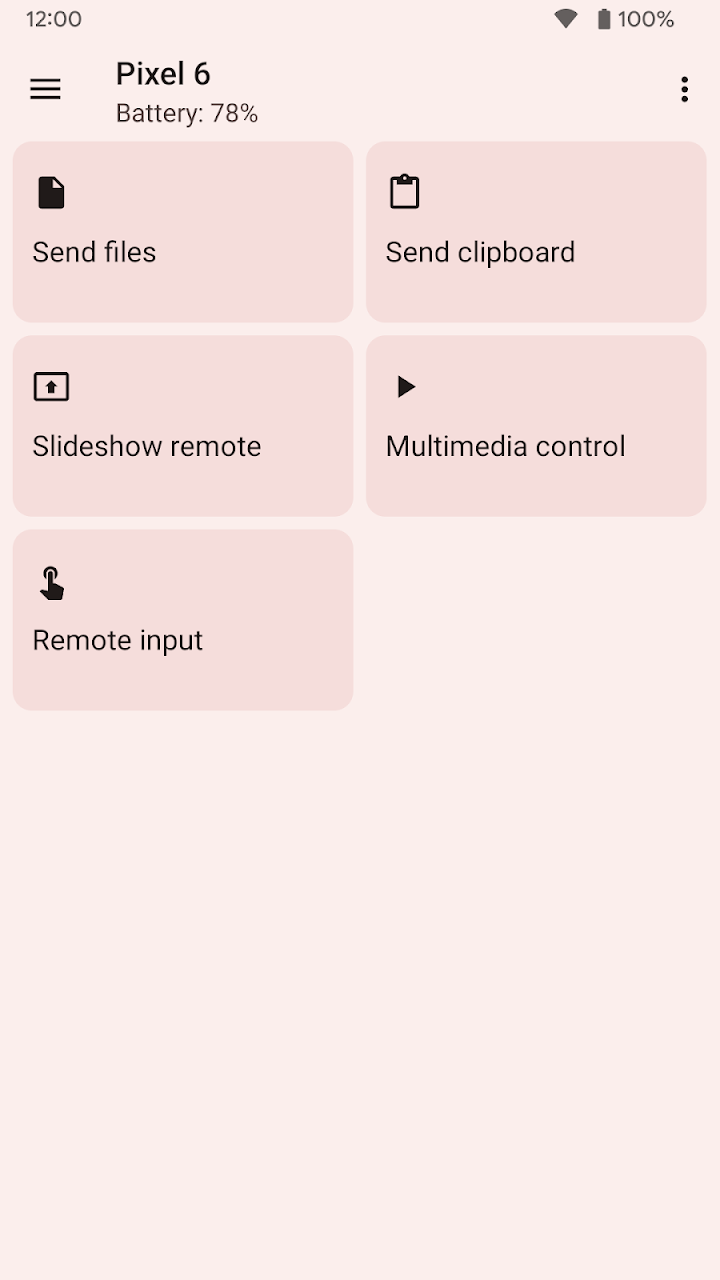
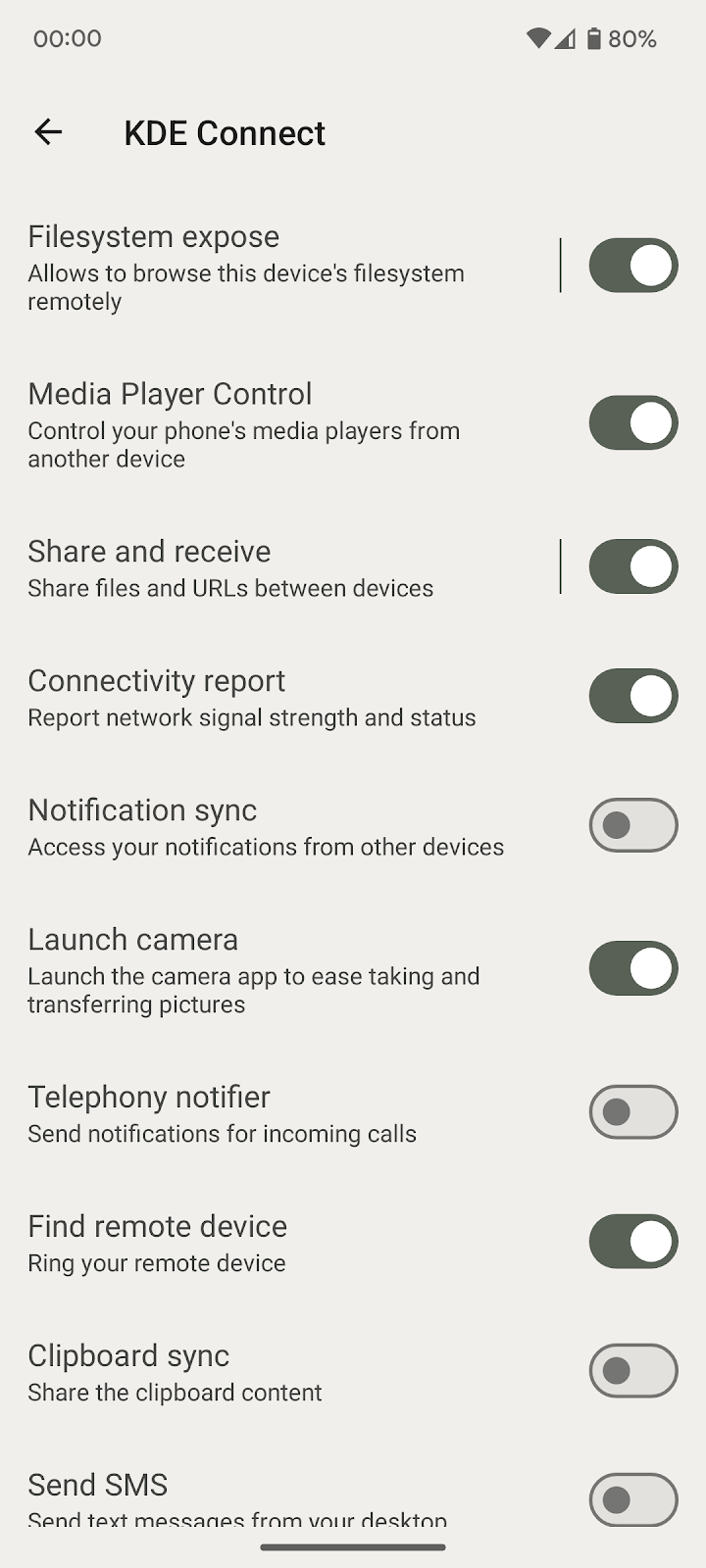
The store listing lists nine features. Here is what each one actually delivers in practice.
File transfer — the killer feature
Send a file from your phone to your computer, or the reverse, with a few taps. No cable, no cloud, no compression, no size limit imposed by a third party. Speeds are as fast as your local network allows, which on modern Wi-Fi is faster than most cloud uploads. This is the feature most people install KDE Connect for, and it works reliably.
Access files on your phone — the broken one
The listing promises you can browse your phone's files from your computer without wires. That is the intent, and it used to work well. Android 11's scoped storage changes broke it for many users, because the app can no longer read arbitrary directories the way it once could. Recent versions have restored partial functionality through the system file picker, and there are workarounds, but it is no longer the seamless remote filesystem it was on older Android versions. If this is your primary use case, test it before relying on it.
Shared clipboard — quietly transformative
Copy text on your phone, paste it on your computer. Copy a URL on your computer, paste it on your phone. There is no ceremony to it, and after a week you stop noticing you are doing it. This is the feature people miss most when they switch away.
There is one meaningful limitation: clipboard sync only works between Android and desktop. iOS does not permit the background clipboard access this requires, so KDE Connect cannot do this with an iPhone. That is a platform restriction rather than a design choice.
Notification sync — the best reason to use it on Linux
Your phone's notifications appear on your desktop. You can read them, dismiss them, and — for apps that support Android's Direct Reply API — reply to messages without touching the phone. Combined with call notifications, it means you can leave your phone on a charger and still handle messages while working.
The caveat is that reply support depends entirely on the source app implementing Direct Reply. Most major messaging apps do; some do not, and for those you can only read and dismiss.
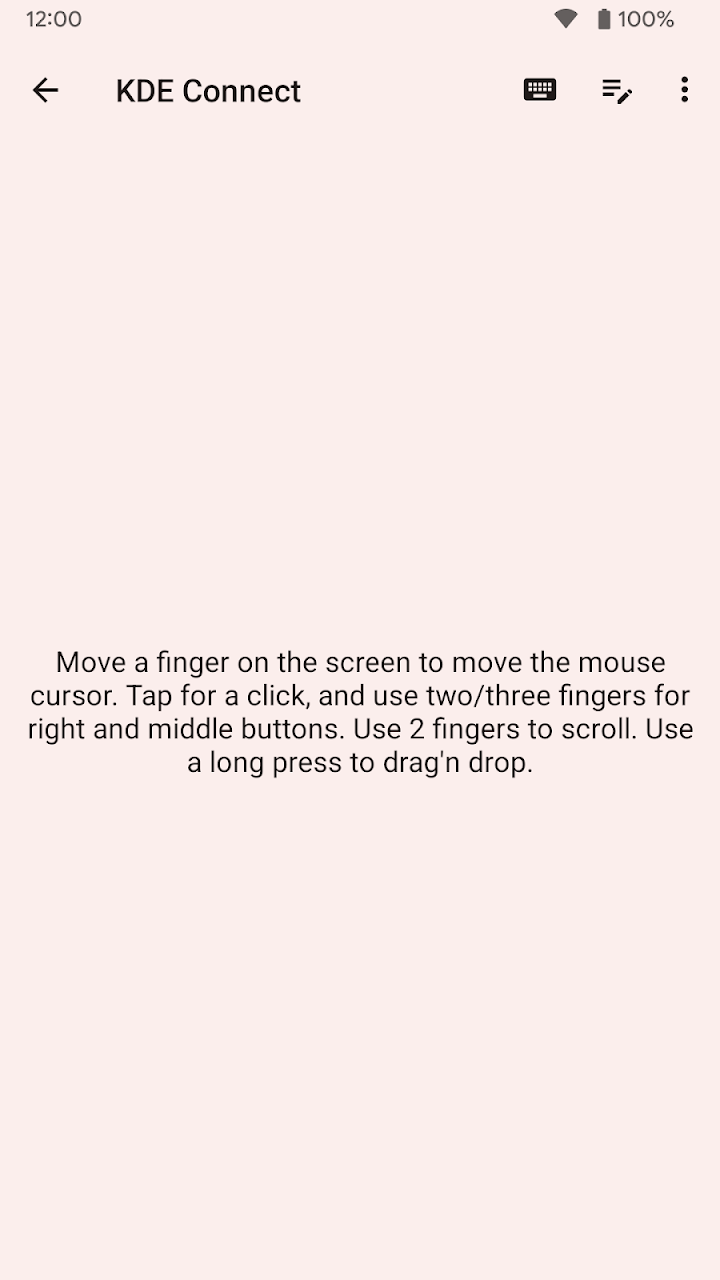
Virtual touchpad and remote input
Use your phone as a wireless touchpad and keyboard for your computer. Practical for a media PC connected to a TV, or for presentations. It is a genuinely useful feature in the right situation and easy to forget about the rest of the time.
Multimedia remote control
Control media playback on your desktop from your phone, including play/pause, skip and volume. This is strongest on Linux, where it integrates with the desktop's media player interfaces. On Windows and macOS it is more limited. If you mainly listen to music on a Linux machine while working, this is a small delight.
Trusted networks
A feature that lets the app connect automatically when you are on a known Wi-Fi network, and stay disconnected when you are not. It is a convenience feature, and it is the reason the app requests background location access — more on that below.
Run commands, send URLs, find your phone, battery status
Smaller features that round out the toolset: trigger a script or command on your computer from your phone, push a URL from one device to the other, ring your phone when it is lost in the sofa, and check your desktop's battery level. None of them are individually essential; together they make the pair of devices feel like one system.
The Permissions: What Accessibility and Location Are For
KDE Connect requests two permissions that deserve a clear explanation, because both are sensitive and both are optional depending on how you use the app. The store listing is unusually honest about this, and it is worth restating in plain terms.
Accessibility Service
Used only for the Remote Input feature — the one that lets your computer control your Android phone's cursor and input. Accessibility Service is one of the most powerful permissions on Android, and granting it to any app is a real decision.
The mitigating facts are that it is only requested for this specific feature, that the app is open source and its code can be inspected, and that you can simply decline and lose only Remote Input. If you do not need to control your phone from your computer, do not grant it.
Background Location
Used only for Trusted Networks — the feature that auto-connects on known Wi-Fi networks. Android requires location permission to read the current Wi-Fi SSID, which is why an app that has no interest in your physical location is asking for it.
Again: optional. If you are happy connecting manually each session, deny the permission and the app works fine.
Other permissions
Notification access (for notification sync), storage (for file transfer), camera (for QR-code pairing), and contacts/phone (for call notifications). Each is tied to a specific feature, and each can be revoked without breaking the rest of the app.
This is what good permission design looks like in practice — the app asks for what a feature requires, explains why, and degrades gracefully when you refuse.
Privacy and Security: The Real Strength
KDE Connect's privacy model is its most compelling feature, and it is worth being specific about why.
All data travels directly between your devices over your local network. Nothing is routed through KDE servers, and there are no KDE servers to route through. The project's own statement is unambiguous: it never sends information to KDE or to any third party, and data moves from one device to the other directly, encrypted end-to-end using TLS .
That means:
- No account. There is nothing to sign up for and no identity tied to your usage.
- No cloud. Your files and clipboard never leave your network unless you send them somewhere.
- No telemetry. There is no analytics SDK, no crash reporting service, no usage tracking.
- No internet requirement. It works entirely on a local network, including a router with no internet connection at all.
The pairing model adds a second layer. Devices must be explicitly paired, and pairing requires confirming a certificate fingerprint or scanning a QR code on both ends. An unpaired device cannot connect, and a paired device that has been tampered with will fail the certificate check.
For anyone uncomfortable with the amount of personal data flowing through cloud sync services, this is a genuinely different proposition. It is also why the app is popular in privacy-conscious and self-hosted communities.
Where It Falls Short
- Same-network only. Devices must be on the same local network. There is no built-in remote access across the internet, which means it does not work when you are travelling unless you set up a VPN. This is a deliberate privacy trade-off, but it is a real limitation.
- File browsing is unreliable on Android 11+ because of scoped storage. The feature exists but no longer works the way it did on older versions .
- Platform parity is uneven. Linux gets the best experience; Windows and macOS clients lag behind .
- Pairing can be finicky. Network configuration matters — Wi-Fi access point isolation, VPNs, and some router setups prevent discovery. When pairing fails, the cause is usually the network rather than the app.
- Version mismatch breaks things silently. The desktop and Android apps must be kept reasonably in sync. An outdated client can cause features to stop working with no obvious error.
- Battery use. A persistent connection costs some power. It is not dramatic, but it is measurable on older devices.
- No iOS support. There is no iPhone client, so this is an Android-and-desktop tool only.
- No polish budget. It is a community project. The interface is functional rather than beautiful, and edge cases are not always handled gracefully.
Setup Tips That Save Time
- Install the desktop app first. You cannot do anything useful on Android until the computer side exists. Get that installed and running before you touch the phone.
- Check you are on the same network. Both devices must be on the same Wi-Fi. If one is on a guest network, a VPN, or mobile data, pairing will fail and the app will not tell you why.
- Use QR pairing. It is faster and less error-prone than typing a PIN, and it confirms both devices at once.
- Disable "AP isolation" on your router if pairing fails. Many routers isolate wireless clients from each other by default. This is the single most common cause of "it cannot find my computer."
- Deny Accessibility and Location unless you need those features. Remote Input and Trusted Networks are the only things they are used for. Everything else works without them.
- Test file browsing before you rely on it. If you are on Android 11 or later, check whether remote file access works for the folders you care about. If it does not, use file transfer instead — it is unaffected.
- Keep both versions updated together. Do not update the Android app and leave the desktop client two versions behind. Protocol changes are the usual cause of mysterious failures.
- Consider a VPN for remote access. If you want the same functionality when you are away from home, a WireGuard or Tailscale setup between your devices gives KDE Connect a network to work over. It is not built in, but it works.
- Use Trusted Networks if you connect often. If you are willing to grant background location, automatic connection on your home network removes the manual step from a tool you use all day.
Pros and Cons
| Pros | Cons |
|---|---|
| Completely free, open source, no ads and no premium tier | Requires a desktop client; does nothing on its own |
| Local-network only; no cloud, no account, no telemetry | Does not work across the internet without a VPN |
| End-to-end TLS encryption with certificate-based pairing | File browsing broken or limited on Android 11+ |
| Clipboard sync is quietly transformative once set up | Clipboard sync impossible with iPhone |
| Deep KDE Plasma integration on Linux | Windows and macOS clients lag behind Linux |
| Notification mirroring with reply support | Reply depends on apps implementing Direct Reply |
| Permissions are feature-scoped and optional | Pairing fails silently on misconfigured networks |
| 10M+ installs, Editors' Choice, over a decade of development | Version mismatch between clients breaks features quietly |
Who Should Use It
Install it today if you use a Linux desktop, especially KDE Plasma. This is the platform the tool was built for, and on it KDE Connect is better than any paid alternative. It is also a clear win for anyone who is privacy-conscious — the local-only architecture is genuinely different from cloud-sync tools, and it costs nothing to try.
Try it if you are on Windows and willing to spend an evening on setup. File transfer and clipboard sync work well, and the price is right. Manage expectations on the deeper integrations.
Check the current client first if you are on macOS. The port exists, but it is the least complete of the three. Verify that the specific features you want are supported in the current version before you build a workflow around it.
Skip it if you need remote access across networks without a VPN, if remote file browsing is your primary use case and you are on a recent Android version, or if you need an iPhone-to-desktop workflow. In those cases a cloud-based tool or a local file-transfer app like LocalSend will serve you better — though neither offers the same privacy model.
Frequently Asked Questions
Is KDE Connect free?
Yes, completely. It is open-source software under the GPL, with no adverts, no in-app purchases, no premium tier and no subscription. It is available on Google Play and F-Droid.
Do I need a computer to use it?
Yes. The Android app requires a companion desktop client to do anything. There are clients for Linux, Windows, macOS and BSD, though the Linux client is the most complete .
Does it work over the internet?
No. It connects devices over the local network only. For remote use you need a VPN between your devices, such as WireGuard or Tailscale. This is a deliberate privacy design, not an oversight.
Is my data safe?
Data is transferred directly between your devices over the local network with end-to-end TLS encryption, and nothing is sent to KDE or any third party . Devices must be explicitly paired and verified before they can connect.
Why does it need Accessibility permission?
Only for the Remote Input feature, which lets your computer control your phone's input. You can decline it and lose only that feature. Everything else continues to work.
Why does it need location permission?
For Trusted Networks, which auto-connects on known Wi-Fi networks. Android requires location permission to read the current network name. It is optional, and the app works fine without it if you connect manually.
Why can't I browse my phone's files from my computer?
Android 11 introduced scoped storage restrictions that broke the original remote file browsing feature. Recent versions have restored partial functionality through the system file picker, but it is no longer a full remote filesystem . File transfer still works normally.
Does it work with an iPhone?
No. There is no iOS client, and iOS would not permit the background clipboard access the app relies on anyway.
Why can't my devices find each other?
Almost always a network issue. Check that both devices are on the same Wi-Fi network, that "AP isolation" or "client isolation" is disabled on your router, and that neither device is on a VPN or a guest network.
Is it better than AirDroid or LocalSend?
Different tools. AirDroid offers cloud relay and remote access, which KDE Connect deliberately does not. LocalSend is excellent for one-off file transfers but does not do clipboard, notifications or media control. KDE Connect is the best choice when you want a persistent, private integration between an Android phone and a Linux desktop.
Is it suitable for children?
It is a utility rather than entertainment, and there is nothing inappropriate in it. The Accessibility and location permissions would need parental consideration on a child's device, but they are optional and only needed for specific features.
Availability and Pricing
KDE Connect is developed by the KDE community and is free open-source software released under the GPL. It is available on Google Play and F-Droid, with desktop clients for Linux, Windows, macOS and BSD. There are no adverts, in-app purchases or subscriptions of any kind.
Before installing, make sure you have the appropriate desktop client for your operating system, and check that both the Android and desktop versions are reasonably current — version mismatch is the most common cause of missing features.
Official site: kdeconnect.kde.org
Source code: invent.kde.org — kdeconnect-android
Desktop downloads: kdeconnect.kde.org/download
Disclosure: NovaRunway is an independent app and game discovery site. We are not affiliated with, endorsed by, or sponsored by the KDE community or any KDE Connect contributor. All trademarks and intellectual property belong to their respective owners. This article reflects our editorial assessment based on the current Android build and publicly available information, and is provided for informational purposes. Features, platform support and permissions may change — verify with the official project documentation before relying on any feature.